Choose an everyday work laptop by confirming your essential software and accessories first, then prioritizing a comfortable screen and keyboard, enough memory and realistic battery life. For a typical mix of documents, video calls and browser tabs, 16 GB of memory is a sensible starting point to consider—not a universal minimum. Spend more only where your actual workload benefits.
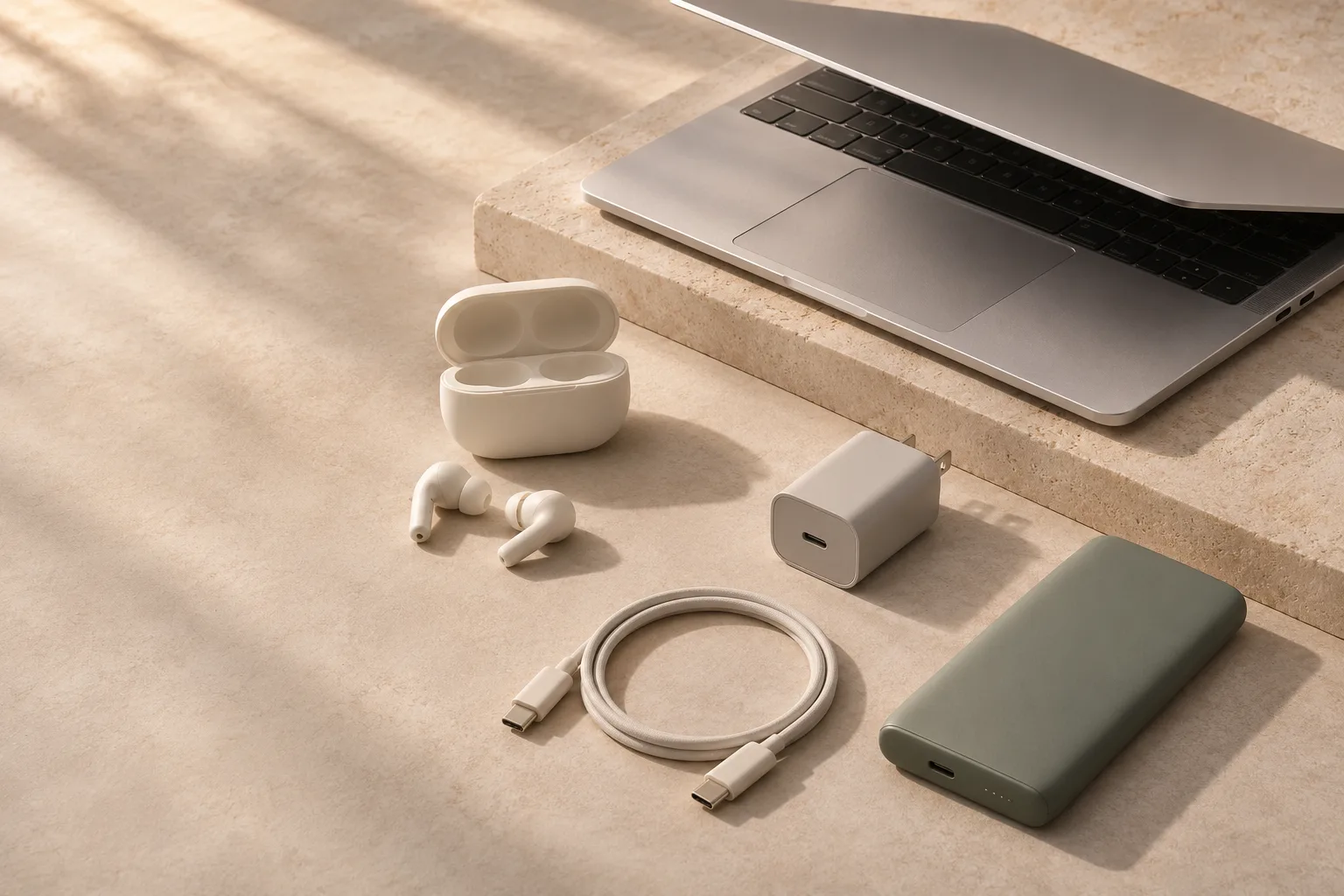
- Your essential software decides the platform.
- Screen and keyboard quality affect every workday.
- Compare the exact configuration, not just the model name.
Describe your workload before comparing specifications
Write down the programs you use together on a busy day. A browser with several workspaces, a video call, a spreadsheet and a background sync tool create a different demand from one document at a time. Add any unusual requirements: a company VPN, an accounting application, a printer, specialist hardware or a required operating system.
Check with your employer if you use managed software or access systems with device requirements. A laptop can be fast and well made yet still be the wrong purchase if your essential tool is unsupported. Include the cost of software, a dock and adapters when setting your budget.
| Typical work pattern | A useful starting priority | When to move beyond it |
|---|---|---|
| Documents, web apps and calls | Comfortable display, reliable webcam and sufficient memory | Many large apps or browser workspaces open together |
| Large spreadsheets or light creative work | Memory headroom and performance in the actual application | Complex models, sustained exports or large media projects |
| Regular travel | Total carrying weight and credible battery evidence | A larger screen matters more than portability |
| Mostly at a desk | External-display support, ports and quiet operation | You often work away from your monitor and keyboard |
Choose a platform that supports the whole job
Windows, macOS and ChromeOS can all suit everyday work, but their application and management options differ. Check the desktop version of an application if you need features missing from its web version. Also check offline work: being able to open a document in a browser does not prove that every part of your workflow works without a connection.
For Windows on Arm, check the actual apps and peripherals rather than assuming either universal compatibility or universal incompatibility. Microsoft says many applications can run through emulation, while hardware and software that rely on drivers need compatible drivers. Company security tools, specialist printers and older accessories deserve particular attention. [1]
For a Chromebook, look up the exact model’s Auto Update Expiration date before purchasing, especially when it is discounted or refurbished. The relevant support clock is not simply the date you buy it. Google publishes the model-specific update schedule. [2]
If your workflow depends on a particular dock or two external monitors, confirm that the exact laptop configuration supports that arrangement. A familiar port shape is not enough evidence.
Buy enough memory before chasing the processor badge
Our practical starting point for general multitasking is to consider 16 GB of memory. An 8 GB configuration can still suit a lighter workload or a tightly constrained budget, but leaves less room for growing applications and heavier multitasking. People working with large datasets, virtual machines or demanding creative tools should assess more memory against those tasks. These are buying judgments, not measured requirements for every user.
Find out whether memory is soldered or upgradeable. If it cannot be changed, the purchase decision matters more. With upgradeable models, verify the actual slots and supported capacity in the service documentation instead of relying on a shop’s generic description.
For storage, 256 GB may be enough for mostly cloud-based documents if you manage local files. A 512 GB drive gives more room for applications, offline files and photos. Neither is a universal requirement. Check your current storage use and leave a practical margin; cloud storage does not eliminate the need for local working space or a backup.
Processor family names alone do not make a reliable ranking across generations, power classes and chassis. Look for evidence from the exact laptop or a closely matching configuration running tasks like yours. A faster processor in a thin machine may bring fan noise or shorter battery life with little noticeable benefit to document work. Discrete graphics are usually a poor priority unless your applications or hobbies use them.
Give the parts you touch and look at a bigger vote
If possible, open a document at your normal text size on the laptop you are considering. Check whether the screen fits enough content comfortably, whether reflections are distracting and whether its brightness suits your workspace. Screen size, resolution and scaling work together: a higher resolution is not automatically more readable.
A taller display can give you more vertical room for documents, while a larger overall laptop gives you more workspace at the expense of bag space and carrying weight. OLED and LCD each involve trade-offs; compare brightness, reflections, power use and the relevant warranty terms rather than treating the panel label as a ranking.
Type a paragraph and use the trackpad. Check the keyboard layout, arrow keys, palm-rest comfort and whether the surface feels cramped. On video calls, microphone and webcam examples from a review are more useful than resolution alone. Look for evidence of fan behavior during ordinary tasks, not only maximum-load benchmarks.
Compare a complete working setup
Battery claims are meaningful only with their test conditions. A video-playback result does not predict a day of calls and browser work. Compare tests from the same method where possible and allow for your brightness, wireless use and workload. Battery capacity in Wh is useful context, but system efficiency and display power also affect runtime.
Count the weight of the charger and any dock you need. A light laptop with a heavy adapter and several essential dongles may be less portable than it first appears. If it supports USB-C charging, verify the required power before replacing its original charger with a smaller one.
Check each port’s documented functions. USB-C describes a connector, while charging, display output and data capabilities depend on the implementation. [3] Confirm external-monitor resolution and count, the ports needed for your accessories, and whether charging occupies the only useful USB-C port.
Choose the exact configuration you can live with
Model names often cover several displays, memory sizes, processors and wireless adapters. Before ordering, save the complete configuration and part number. Review findings for one screen or battery variant may not apply to another.
Read the warranty for your country, battery service options and the return policy. For a refurbished machine, ask about battery condition, charger inclusion, cosmetic grading, the operating-system license and any previous organization’s device-management lock. A lower purchase price is useful only if the machine can be set up and supported.
- Essential apps and accessories: confirmed for the exact platform.
- Memory and storage: enough for your normal workload, with upgrade limits understood.
- Screen, keyboard and calls: acceptable for a full working day.
- Battery and ports: supported by relevant evidence, not just headline claims.
- Total price: includes the accessories, software and service cover you need.
If your current laptop already handles the work, identify the specific frustration a replacement would fix. A battery replacement, extra memory on an upgradeable model or a better external screen may solve that problem for less.
CHECK THE DETAILS
Sources & further reading
Primary sources checked on 14 November 2026. Product support and travel rules can change; verify details for the exact model or journey.
- Microsoft Support — Windows Arm-based PCs FAQ ↗
Application emulation and driver compatibility.
- Google — ChromeOS Auto Update policy ↗
Device-specific support schedules and platform release dates.
- USB-IF — USB Type-C product and packaging guidance ↗
Separating connector shape from power, data and display capabilities.
This is a research-based buying guide, not a hands-on product test. There are no affiliate links in this guide. Our editorial approach.